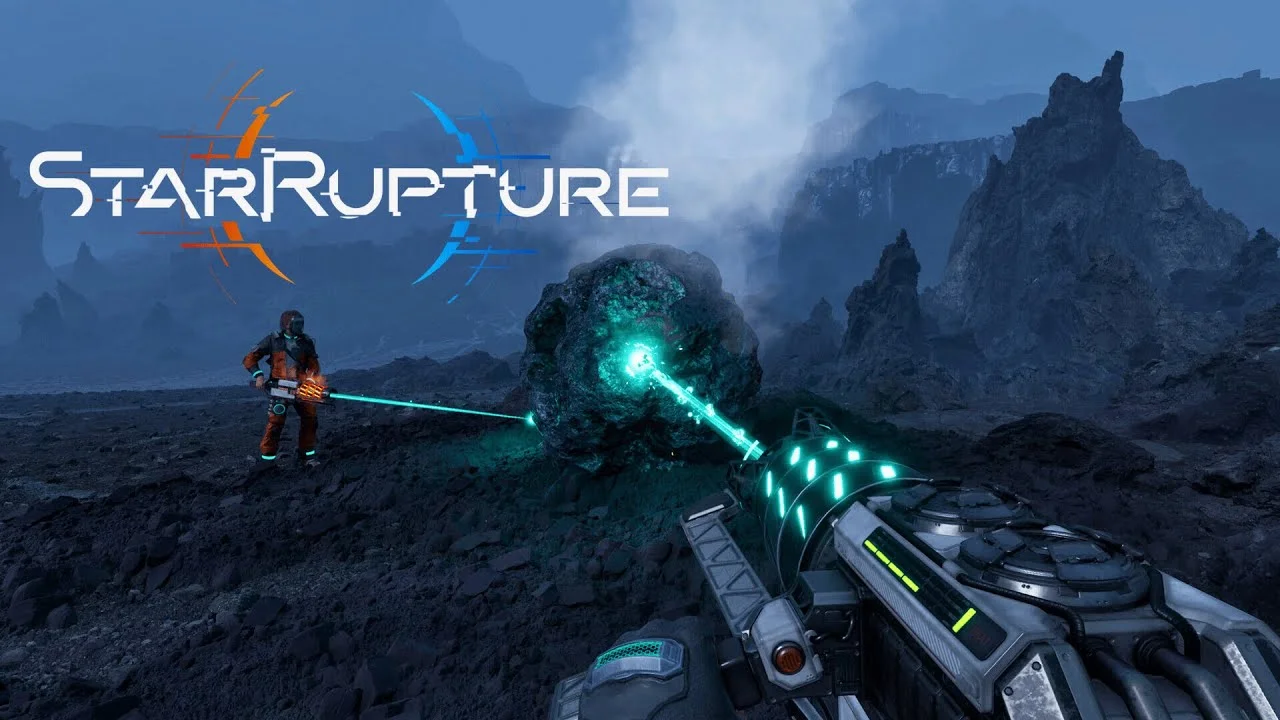
Picture this: You’ve spent six hours building the perfect automated mining operation on Arcadia-7. Your conveyor belts are humming, your defenses are primed, and you finally feel like you’re getting somewhere in this brutal sci-fi survival game. You restart your StarRupture server to fix a minor lag issue, reconnect, and… blank void. No base. No progress. Just an empty planet mocking you.
That sinking feeling? I’ve been there. Multiple times. And here’s the thing—it’s not your fault. The dedicated server tools for StarRupture are, to put it bluntly, a complete mess right now. Creepy Jar launched this game into early access with server functionality that feels like it was designed by someone who actively hates server administrators.
But after wrestling with port forwarding configs, error logs, and that godforsaken “Manage Server” menu for way too many hours, I’ve cracked the code. This StarRupture Server Guide is going to walk you through the entire setup process, explain why your friends keep timing out when trying to connect, and most importantly—show you how to avoid losing your mind (and your save files) when that inevitable server restart happens.
 My Winter Car Beginner’s Guide: Everything You Need to Know to Survive 1999 Finland
 Table of Contents
Why You Need This StarRupture Beginner’s Guide Right Now
Look, I’m not going to sugarcoat this. If you came here expecting a simple “click this button and you’re done” solution, you’re going to be disappointed. The current state of StarRupture’s dedicated server implementation is what I’d generously describe as “experimental feature that escaped from the dev build.”
You’ve probably already discovered the annoying tether distance in standard co-op. You and your buddy wanted to split up—one person managing the base defenses while the other explores that mysterious structure on the horizon—but nope. Stay within 200 meters or the game basically kicks one of you out. It’s infuriating in a game that’s all about building sprawling industrial complexes.
That’s where dedicated servers come in. Once properly configured, they eliminate the tether completely, keep your world running 24/7 even when you’re offline, and give you actual control over your multiplayer experience. The catch? Getting to “properly configured” requires navigating through some of the most counterintuitive server setup I’ve encountered in modern gaming.
Here’s what we’re covering in this guide: hardware requirements that actually matter (spoiler: that old laptop isn’t going to cut it), two different installation methods depending on your setup, the batch file configuration that trips up everyone, the critical “Manage Server” initialization process that prevents the dreaded blank void, port forwarding for your router and Windows Firewall, and the restart bug that’s causing save file panic across the community.
 The Only Guide You Need to Understand Armor in Where Winds Meet (So You Stop Dying)
 Hardware Requirements: Don’t Run This On A Toaster
Before you even think about downloading server files, let’s talk about whether your machine can actually handle this. StarRupture isn’t some lightweight 2D indie game where you can spin up a server on a Raspberry Pi and call it a day.
This game features complex physics simulation, massive procedurally generated terrain, automated production chains with dozens of machines running simultaneously, and swarms of alien enemies that need to be calculated and rendered server-side. If your hardware is barely keeping up with the game client, it’s definitely not going to handle hosting a dedicated server.
For a small group of 2-4 players with modest base sizes, you’re looking at minimum requirements of a modern quad-core CPU (Intel i5-9400 or AMD Ryzen 5 3600 generation or newer), 8GB RAM dedicated just to the server process, and at least 20GB free storage space for server files and saves. That’s the bare minimum to avoid constant lag and connection drops.
If you’re planning to host larger groups or build those sprawling megabases that StarRupture encourages, bump those specs up. I’d recommend a six-core CPU, 16GB RAM, and an SSD for the server installation. The game’s save files can balloon quickly, and you do not want to be reading from a slow mechanical drive when the server is trying to load your world.
Network bandwidth matters too. A stable upload speed of at least 5 Mbps per connected player is recommended. Running a four-player server on a connection with 10 Mbps upload is asking for rubber-banding and desyncs during combat.
One more thing—keep other resource-intensive programs closed on the host machine. Don’t try to stream, render videos, or play other games while hosting. Your friends will notice the lag immediately, and you’ll spend more time troubleshooting than actually playing.
 The 2026 Guide to Path of Exile 2 Currency: Stop Wasting Your Orbs
 Installing StarRupture Dedicated Server Files
You’ve got two paths forward here, and which one you choose depends on your setup. If you’re hosting on your main gaming PC where StarRupture is already installed, the Steam client method is straightforward. If you’re setting up a dedicated machine or prefer a cleaner headless installation, SteamCMD is your friend.
Method One: Steam Client Installation (The Easy Way)
This approach works great if you’re running the server on the same PC where you play the game. Open your Steam library and look for the “Tools” filter—StarRupture Dedicated Server should appear as a separate entry (assuming Creepy Jar has pushed it to your account, which has been spotty during the early access launch).
Right-click “StarRupture Dedicated Server” and select “Install.” Choose your installation directory—I recommend creating a dedicated folder like C:\Servers\StarRupture rather than letting it dump into your default Steam library. This keeps everything organized and makes troubleshooting easier later.
The download is roughly 10GB, so grab a coffee. Once it’s finished, you’ll have all the server executables and configuration files ready to go. Just remember where you installed it—you’re going to need that path in a minute.
Method Two: SteamCMD Installation (The Clean Way)
If you’re setting up a dedicated machine or want a more streamlined installation without the full Steam client, SteamCMD is the way forward. Download it from Valve’s official documentation page and extract it to a simple directory like C:\SteamCMD—no spaces in the path, trust me on this.
Create a batch file called “install_starrupture.bat” in your SteamCMD folder with this code:
@echo off
cd /d C:\SteamCMD
steamcmd.exe +force_install_dir "C:\Servers\StarRupture" +login anonymous +app_update 3809400 validate +quit
Run that batch file as Administrator. SteamCMD will download the StarRupture dedicated server files using App ID 3809400. The “validate” flag ensures you’re getting uncorrupted files, which is critical because early access games can have wonky builds.
Note: Some players reported getting “No subscription” errors when trying this method during launch week. Creepy Jar was still assigning server access to accounts, so if you hit that error, try the Steam client method or wait a day and try again.
 Pokémon GO New Year’s 2026 Event: Your Complete Guide to Maximizing Rewards
 Configuring Your Launch Script: The Code That Actually Matters
Here’s where things get interesting. You cannot just double-click StarRuptureServerEOS.exe and expect anything to work. The server executable needs specific launch parameters to know which IP addresses to bind to, which ports to listen on, and what to call your server.
Navigate to your server installation folder (wherever you installed it) and create a new text file. Name it “StartServer.bat” and paste this code inside:
@echo off
cd /d "C:\Servers\StarRupture"
StarRuptureServerEOS.exe -Log -MULTIHOME=0.0.0.0 -Port=7777 -QueryPort=27015 -ServerName="MyStarRuptureServer"
Let’s break down what each parameter actually does, because understanding this will save you hours of troubleshooting:
-Log enables console logging so you can see what the server is doing. Without this, you’re flying blind when issues crop up. The logs get saved to the Saved\Logs folder and are invaluable for diagnosing connection problems.
-MULTIHOME=0.0.0.0 tells the server to bind to all available IP addresses on your machine. If you have multiple network adapters or a VPN running, this ensures the server listens on the right interfaces. Some guides tell you to put your public IP here—don’t do that. Use 0.0.0.0 and let the server figure it out.
-Port=7777 sets the main game port. This is where clients will connect, and it’s the port you’ll be forwarding on your router. You can technically change this to something else, but 7777 is the standard and using it makes troubleshooting easier when asking for help.
-QueryPort=27015 is the port Steam uses to communicate with the server for the server browser (even though StarRupture currently uses direct IP connections). Some games can auto-detect servers on the LAN using this port. Keep it at 27015 unless you have a specific reason to change it.
-ServerName sets what players will see when they’re looking at the server list. Choose something memorable. You can also add optional parameters like -Password=”YourPasswordHere” if you want to keep randos out, and -MaxPlayers=4 to set the player cap.
Save that batch file and you’re ready for the next critical step—the one that literally everyone gets wrong on their first attempt.
 StarRupture Survival Manual: How to Eat, Drink, and Not Die Every Five Minutes
 The “Manage Server” Initialization Trick (Don’t Skip This)
This is where the StarRupture Server Guide gets real. What I’m about to explain is responsible for approximately 90% of “why won’t my server work” support threads. Ready?
Running your StartServer.bat file does not actually start a playable server session. I know that sounds insane, but hear me out. The server executable launches and sits in an “idle” state, waiting for you to manually tell it to create a game session through the Manage Server interface.
If you just run StartServer.bat and then try to connect by entering your IP address, you’ll get timeout errors, “Web Remote Call deserialization error” messages, or just endless loading screens. The server is technically running, but there’s no active game session for you to connect to.
Here’s the exact process: Run StartServer.bat and wait for the console log to stop scrolling. You’ll see messages about Epic Online Services initializing and the server listening on your specified ports. Now, on your gaming PC (which can be the same machine hosting the server), launch the StarRupture client.
From the main menu, click “Manage Server.” This option is easy to miss—it’s not prominently displayed. Enter your server’s local IP address with the port: for example, 192.168.1.100:7777 if you’re on the same network, or 127.0.0.1:7777 if you’re hosting on the same PC you’re playing from.
The game will connect to the server’s admin panel. If this is your first time connecting, it’ll prompt you to set an admin password. Choose something secure—anyone with this password has full control over your server settings.
Once you’re in the Manage Server interface, you’ll see options to start a new game or load an existing save. Click “New Game” if this is your first time, or “Load Game” if you already have a save file. Then hit “Start.”
Only after you click Start in this menu is the server actually hosting an active session. Now your friends can connect through the normal Join Game menu using your public IP address.
I cannot overstate how many hours of frustration this one trick will save you. Every single “my server doesn’t work” problem I’ve seen on the Steam forums traces back to people skipping this initialization step.
 Arc Raiders Skill Tree Guide: Best Skills & Builds 2025
 Port Forwarding For StarRupture: Router and Firewall Setup
If your friends are on the same local network as you, you can skip this section. But if you’re hosting for people connecting over the internet, port forwarding is non-negotiable.
StarRupture uses two UDP ports: 7777 for the game connection and 27015 for the query protocol. Both need to be forwarded on your router and allowed through Windows Firewall. Missing either one will cause connection failures.
Windows Firewall Configuration
Open Windows Defender Firewall with Advanced Security (search for it in the Start menu). Click “Inbound Rules” in the left panel, then “New Rule” on the right side. Select “Port” as the rule type and click Next.
Choose UDP protocol and enter 7777 in the specific local ports field. Click Next, select “Allow the connection,” and click Next again. Make sure all three profiles (Domain, Private, Public) are checked. Give it a descriptive name like “StarRupture Game Port” and finish.
Repeat this entire process for port 27015. You’ll end up with two inbound rules—one for each port. Also create a rule for the StarRuptureServerEOS.exe executable itself: choose “Program” instead of “Port,” browse to your server folder, and select the executable.
Router Port Forwarding
This is where things get hardware-specific because every router brand has a slightly different interface. The general process is the same though. Log into your router’s admin panel—usually something like 192.168.1.1 or 192.168.0.1 in your web browser.
Look for a section called “Port Forwarding,” “Virtual Server,” “Applications and Gaming,” or “NAT.” The exact name varies by manufacturer. You’re going to create two forwarding rules.
For the first rule: set external port to 7777, internal port to 7777, protocol to UDP, and internal IP address to the local IP of the machine running your server (use ipconfig in Command Prompt to find this). Name it something like “StarRupture Game.”
For the second rule: external port 27015, internal port 27015, protocol UDP, same internal IP address. Name it “StarRupture Query.”
Save both rules and reboot your router to ensure they take effect. Some routers apply changes immediately, others need a restart.
To test if your ports are actually open, use an online port checking tool like canyouseeme.org or portchecktool.com. Enter your public IP address (Google “what is my IP” to find this) and port 7777. If it shows as open, you’re golden. If it shows as closed, double-check your firewall rules and router configuration.
Pro tip: If you’re behind a double NAT situation (like using your ISP’s router plus your own router), port forwarding gets complicated. You may need to enable “DMZ” mode for your internal router on the ISP router, or call your ISP and ask them to put their modem/router combo into bridge mode.
 How to Fix DXGI_ERROR_DEVICE_HUNG in ARC Raiders
 The Server Restart Bug: Why Your Save Keeps Disappearing
Remember that heart attack moment I mentioned at the beginning? Time to talk about the restart bug that’s been terrorizing the StarRupture community since day one of early access.
Here’s the problem: When you restart your dedicated server (either because it crashed, you rebooted your PC, or you just wanted to apply a setting change), the server does not automatically reload your last save file. Instead, it defaults to an idle state, and when you connect through the Manage Server menu, it’ll prompt you to start a new game or load a save manually.
If you skip this step and just try to join via the normal “Dedicated Server” option, the server will generate a brand new world. You’ll spawn on a fresh planet, see no trace of your base, and immediately panic thinking your hours of progress just evaporated.
Your save file isn’t deleted. It’s sitting right there in the server’s Saved\SaveGames folder, completely intact. The server just didn’t load it automatically.
Every single time you restart the server, you need to repeat the Manage Server initialization process: run your StartServer.bat, open the StarRupture client, go to Manage Server, enter 127.0.0.1:7777 (or your local IP), connect to the admin panel, click “Load Game,” select your save file from the dropdown, and click “Start.”
Only after completing this ritual is your actual world loaded and ready for connections. Then your friends can join using the normal Dedicated Server connection method with your public IP.
Is this workflow absolutely ridiculous? Yes. Should the server just auto-load the most recent save file on startup? Also yes. But until Creepy Jar patches this behavior, you’re stuck with the manual reload process.
Mark this in your brain right now: server restart equals manual reload through Manage Server. Missing this step is how people “lose” saves that were never actually gone.
If you want to get fancy, you can write a script that automates launching the server and loading a specific save, but that requires diving into the server’s configuration files and isn’t officially documented yet. For now, the manual process is your safest bet.
 Octopath Traveler 0 Tips: 15 Game-Changing Secrets I Wish I Knew Earlier
 Connecting To Your Server: How To Actually Join
Once your server is properly initialized through Manage Server and you’ve verified that the session is active (you’ll see log messages about the session starting), it’s time to actually play.
Launch StarRupture on any client PC, click “Join Game” from the main menu, and select “Dedicated Server.” You’ll see a field asking for the server address. This is where you enter the host’s public IP address followed by the port: something like 123.45.67.89:7777.
If you set a password on the server, there will be a password field. Enter it exactly as you configured in the launch parameters. Click “Connect” and you should load into the world.
For friends on the same LAN, they can use your local network IP instead (the 192.168.x.x address). This bypasses the whole internet routing process and typically results in lower latency.
Common connection issues at this stage are almost always related to firewall rules or port forwarding. If clients are timing out, go back and verify that UDP ports 7777 and 27015 are properly forwarded and that no antivirus software is blocking the connection.
One weird quirk: if you’re hosting the server and trying to play from the same PC, sometimes using 127.0.0.1:7777 causes problems. Try using your machine’s actual local IP address instead (find it with ipconfig). I know it sounds bizarre, but I’ve seen it fix connection issues multiple times.
 StarRupture Corporation Guide: Who To Sell Your Soul To First
 Troubleshooting Common Issues That’ll Make You Want To Quit
Let’s rapid-fire through the problems that keep cropping up in community forums, because I guarantee you’ll hit at least one of these:
“Web Remote Call deserialization error”: This almost always means you’re trying to connect to a server that hasn’t been initialized through Manage Server. The server is running but there’s no active session. Follow the initialization steps in this guide.
Connection timeout after 30 seconds: Port forwarding issue. Verify UDP 7777 and 27015 are forwarded correctly on both your router and Windows Firewall. Use an online port checker to confirm they’re actually open to the outside world.
Server crashes on startup: Usually caused by corrupted configuration files or conflicting launch parameters. Delete the entire Saved\Config folder in your server directory and let the server regenerate clean configs on next launch.
Terrible lag despite good hardware: Check if Windows is putting your network adapter to sleep for power saving. Go to Device Manager, find your network adapter, Properties, Power Management tab, and uncheck “Allow the computer to turn off this device to save power.”
Can’t see server in LAN discovery: StarRupture uses Epic Online Services which bypasses traditional Steam server browsers. You can’t find servers through automatic discovery—you need to know the IP address and connect directly.
SteamCMD gives “No subscription” error: The dedicated server app wasn’t assigned to your account yet. Wait 24 hours after purchasing the game for Steam’s backend to process it, or try downloading through the Steam client instead.
Server uses too much CPU even with no players: The server still simulates the entire world when idle. If this is a problem, use Task Manager to set the StarRuptureServerEOS.exe process to “Below Normal” priority so it doesn’t choke out other applications.
 How to Build My Winter Car Corris Rivett – ALL PARTS & ASSEMBLY PROCESS EXPLAINED
 Advanced Tips For Running A Stable Server
Once you’ve got the basics working, here are some pro tips to keep your StarRupture server running smoothly without babysitting it 24/7.
Schedule regular restarts during off-hours using Windows Task Scheduler. Servers tend to accumulate memory leaks and performance issues over long uptimes. A nightly 4 AM restart keeps things fresh. Just remember you’ll need to re-initialize through Manage Server after each restart.
Back up your Saved folder religiously. Early access games are notorious for save corruption, especially during updates. Create a simple batch script that copies the entire Saved directory to a backup location once a day. You’ll thank yourself when an update bricks your save file.
Monitor your server’s resource usage. Task Manager is your friend here. If you’re consistently hitting 90%+ CPU or RAM usage, either upgrade your hardware or reduce your player limit. Performance degrades fast once resources are maxed out.
Keep the server installation separate from your game client installation. Don’t try to run both from the same directory. It causes weird conflicts with configuration files and save data. Dedicated folder structures make troubleshooting infinitely easier.
Document your configuration. Take screenshots of your router port forwarding rules, save a copy of your launch batch file, and write down your admin password somewhere secure. When you inevitably need to rebuild the server after a Windows update, you’ll have everything documented.
Join the StarRupture Discord and Reddit communities. Server hosting is still rough around the edges, and new issues crop up with every patch. The community usually figures out workarounds faster than official documentation gets updated.
 Cloudheim guide: How classes, weapons, and XP work together with pinball combat
 When Professional Hosting Makes More Sense
Look, I get it. Some of you just want to play the game without becoming network administrators. If the idea of port forwarding makes your brain hurt, or if your internet connection isn’t reliable enough for stable hosting, professional game server hosting is a legitimate option.
Companies like GameNero have launched StarRupture hosting packages that handle all the technical nonsense for you. You get a control panel where you can restart the server, change settings, and manage saves without touching a single configuration file.
The tradeoff is cost—usually $10-20 per month depending on player slots and hardware specs—but it comes with perks like DDoS protection, automatic backups, and support teams who actually understand the game. For groups of friends who just want to play without server admin headaches, it’s worth considering.
Professional hosts also have better uptime than running a server on your home PC. No worrying about power outages, internet disconnections, or your cat deciding to walk across your keyboard at exactly the wrong moment.
That said, if you’ve made it this far in the guide and successfully got your own server running, you’re probably the kind of person who enjoys the technical challenge. There’s something satisfying about building your own infrastructure, even when the process is frustratingly janky.
 Cloudheim Starter Guide: Stop Hoarding and Start Kicking
 What’s Coming: Future Updates and Feature Roadmap
Before we wrap up, let’s talk about what Creepy Jar has planned for StarRupture’s dedicated server implementation throughout 2026. The developers acknowledged that the current system is experimental and needs serious work.
The roadmap mentions improved server configuration tools, better documentation for common setup issues, automatic save file loading on server restart (finally!), and a potential server browser so you don’t need to manually enter IP addresses. Controller support and accessibility options are also coming to the main game, which should make server management interfaces easier to navigate.
During the early access period, expect frequent patches that might temporarily break your server configuration. Creepy Jar’s track record with Green Hell showed they listen to community feedback and iterate quickly, so the rough edges should get smoothed out over the coming months.
Keep your server updated by running your SteamCMD update script before each session, or enabling automatic updates in the Steam client. Most patches won’t break save compatibility, but always back up your saves before updating just in case.
The community is also working on third-party tools like web-based control panels and automated backup scripts. Check the StarRupture subreddit and Discord for the latest community creations—some genuinely useful tools come out of these communities.
 Stop Building Like A Noob: Advanced Tactics To Break ‘Alchemy Factory’
 Final Thoughts: Is This Worth The Effort?
Honestly? If you’re serious about playing StarRupture with friends and you’re tired of the tether distance ruining your co-op experience, setting up a dedicated server is absolutely worth the initial frustration.
Yes, the current implementation is janky as hell. Yes, you’ll probably spend an hour or two troubleshooting ports and initialization issues before everything clicks. Yes, the manual save reload process after restarts is absolutely ridiculous and shouldn’t exist.
But once you’ve got it working, the gameplay experience transforms. No more “wait for me, I need to stay in range.” No more host disconnections killing the entire session. No more arguing about whose computer should be running the world. Just pure, uninterrupted factory-building and alien-slaying chaos across a massive open world.
The fact that you’re reading a 3,000+ word guide about server setup tells me you’re the kind of player who appreciates having full control over your gaming experience. You’re willing to dig into configuration files, troubleshoot network issues, and endure some early access jank in exchange for a better multiplayer experience.
That’s exactly the audience Creepy Jar is targeting with this game. Players who enjoy the technical side of game hosting, who don’t mind getting their hands dirty with batch files and port forwarding, and who see server administration as part of the gaming experience rather than an obstacle to it.
So bookmark this StarRupture Server Guide, keep it handy for when things inevitably break during updates, and don’t be afraid to experiment with server settings once you’ve got the basics working. The community is still figuring out optimal configurations, and your discoveries might help other players avoid the headaches you’ve already solved.
Now get out there and build that automated mining empire. Your friends are waiting, and Arcadia-7 isn’t going to colonize itself. Just remember—when you restart that server, manually load your save through Manage Server. Seriously. Don’t forget that step.
 Where Winds Meet Optimization Guide: How To Make The Game Look Beautiful Without Burning Down Your PC
 FAQs About StarRupture Beginner’s Guide
How do I set up my own dedicated server?
Setting up a StarRupture dedicated server requires downloading the server files through Steam or SteamCMD, creating a batch file with launch parameters (-Log, -MULTIHOME, -Port=7777, -QueryPort=27015), using the Manage Server menu to initialize your session, and forwarding UDP ports 7777 and 27015 on your router and firewall. The critical step everyone misses is accessing the Manage Server menu before anyone can connect—without this initialization, your server sits idle and players will timeout.
Why is my game not connecting to the server?
Connection failures are almost always caused by firewall or port forwarding issues. You need to forward UDP ports 7777 (game port) and 27015 (query port) on both your router and Windows Firewall. Make sure your server was properly initialized through the Manage Server menu—if you skipped this step, the server is in an idle state and won’t accept connections. Also verify you’re using the correct public IP address and that your ISP isn’t blocking the ports.
How to play a private server with friends on Unturned?
While this question references Unturned, the process for StarRupture is similar: host a dedicated server by installing the server files, configure your batch file with a password parameter (-Password=”YourPassword”), forward the required UDP ports (7777 and 27015), and share your public IP address with friends. They’ll connect by selecting Dedicated Server from the Join Game menu and entering your IP:Port (e.g., 123.45.67.89:7777) along with the password you set. Make sure to initialize the server session through Manage Server before they attempt to connect.
Are dedicated servers worth it?
For StarRupture, dedicated servers are absolutely worth it if you’re playing regularly with friends. The annoying tether distance in standard co-op sessions forces everyone to stay close together, which is brutal in a game about building sprawling industrial complexes across an alien planet. A dedicated server eliminates the tether, keeps the world online even when you’re not playing, and gives you full control over settings. The setup is janky right now in early access, but once you get past the initial configuration headaches, it transforms the multiplayer experience.
Looking for more StarRupture tips? Check out our comprehensive guides on managing in-game systems, or explore our coverage of gear optimization strategies that apply to survival games. And if you need a break from alien planets, our troubleshooting guides for technical issues might save you hours of frustration.
For more analysis on whether game mechanics are worth your time, check out GameNero’s take on Arc Raiders’ expedition reset system, or their coverage of controversial design decisions in The Old Country.
 Octopath Traveler 0 Complete Weapon Database (2026)